
Meeting App
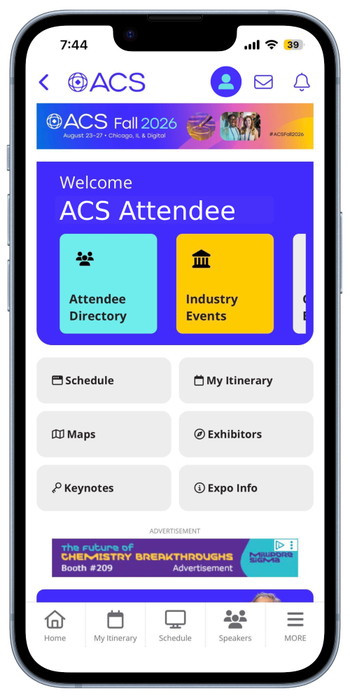
Save the ACS Fall 2026 App on your mobile device or laptop!

Scan the QR code with your camera or use the save button on a mobile device and follow the prompts for installation. You will also find this information on the desktop version of the app. The app is not in the app store.
How to login after saving the app:
- Once you have the app saved, log-in with your ACS ID, the same ID you used to register for the meeting. You will need to be logged-in to experience all the features available to you within the meeting platform.
- Select "Yes, remember this device," or "No, this is a shared device" when the app prompts you to remember this device for up to 30 days.
- To enable notifications from the meeting app, select "allow" once you are logged into the meeting app, or go to the settings for your device and turn on notifications. We encourage enabling notifications so you can receive the latest information such as last-minute room changes or reminders about important events.
Meeting App Tutorials
Mobile meeting app overview
In this tutorial, you will learn how to:
- Download the app to your mobile device and login
- Set notifications and alerts
- Edit your account settings and time zone
- Add sessions to your personal itinerary
- Search for sessions by keywords and other filters
Getting started in the app
In this desktop overview of the app, you will learn how to:
- Login and use the virtual platform on desktop
- Edit your account settings and time zone
- Search for sessions by keywords and other filters, and add sessions to your itinerary
How to search the program
In this tutorial, you will learn how to:
- Find information about different meeting events
- Explore curated tracks
- Save sessions to your itinerary
How to build your itinerary
In this tutorial, you will learn how to:
- Bookmark and save sessions to your itinerary
- View sessions in calendar and list views
- Download calendar invites to events
Discover attendee resources
In this tutorial, learn how to:
- Find onsite services and resources via the Attendee Services tab
- View maps of the session rooms and expo hall
- Navigate to session rooms and expo booths
- Opt-in to networking features in the app
Don't miss any deadlines!
Get meeting news delivered to your inbox!
